How to Play GSPro Online With Friends, and What Your Sim Needs First
GSPro Online Match lets up to 8 players share a round from different sims. Here is how to host or join a room, which settings to agree on, and the launch monitor, PC and SGT details other guides skip.

Yes, you can play a real round in your sim against a buddy in another state. GSPro's Online Match lets up to 8 players share one round, and it is built into the $250 a year subscription you already pay. Setup is simple once your sim is ready for it. Most guides stop at "click Online Match." This one covers what has to be right in your sim room first, because that is where most people get stuck.
What you need before you can play GSPro online
Every player in the round needs their own setup. Your friend does not play on your license, and you do not play on theirs.
| What you need | Why it matters | What it costs |
|---|---|---|
| GSPro subscription | Each player needs an active license | $250 a year |
| Windows gaming PC | GSPro runs on Windows 10 or 11 only. No Mac, no iPad | Our HD Gaming PC is $2,250, or you can buy one locally |
| A launch monitor that works with GSPro | Some need an unlock or an extra subscription first | Varies by unit |
| A stable internet connection | GSPro lists it as a requirement | Your home internet |
| A way to talk | GSPro has lobby text chat and a video option, but a phone call or Discord works too | Free |
| SGT membership (only for tournaments) | Simulator Golf Tour runs the organized events on GSPro | $80 a year at the retailer we checked |
How do I set up an online match in GSPro?
Here is the flow from GSPro's own knowledge base. Menu names are in bold so you can find them on screen.
If you are hosting
- From the main menu, pick Online Match. It is the option furthest to the right.
- Click the Room Name box and type a name. Keep it simple, because you will text it to your group.
- Leave Make Room Public off if you only want your friends in. Turn it on if you want strangers to find you in the Public Rooms list.
- Pick the course. Nobody can join until a course is selected, so do this right away.
- Open the Match Settings tab and set the game. More on that below.
- Use the Holes tab if you only want to play 9.
- Text the room name to your group. When everyone shows up under Players In Room, hit Play.
If you are joining
- From the main menu, pick Online Match.
- Go to the Join tab and type the room name exactly as the host sent it.
- Set your tee box under your name and wait for the host to start.
You can also add a second person from your own sim to the same online room. Click the plus in an open slot under Local Player selection. That is how two buddies in your garage can play against two buddies in theirs.
Which settings should we agree on before we tee off?
This is where online rounds go sideways. Every player is on a different launch monitor, a different hitting mat, and a different room. Agree on the settings before anyone swings, or the trash talk turns into an argument by hole 3.
- Game Mode: Stroke, Scramble, Match, Alternate Shot, Best Ball, Stableford or Shamble.
- Gimmie and Auto Putt: Putting is the biggest difference between sims. If one of you putts on a real green surface and the other putts on a hitting mat, turn on gimmes or Auto Putt.
- Mulligan: On or off. Decide now.
- Wind: No Wind, Calm (0 to 5 mph), Breezy (5 to 10 mph) or Gusty (10 to 25 mph).
- Stimp, green firmness and fairway firmness: Leave them at default for your first round.
- Putting Assist, Breakline Assist and Putting Forgiveness: Easy, Normal or Hard. Use the same level for everyone.
- Handicap: Turn it on if the group has a wide spread of skill. Set each player's handicap in Settings, then Players.
Our take: for a casual round with friends, play Best Ball or Scramble with gimmes on. It keeps the pace up and nobody spends ten minutes three putting on a mat.
What most guides leave out: getting your sim ready for online play
The GSPro side is easy. The problems we help with are on the hardware side. Here is what to check before your first online round.
Your launch monitor has to be cleared for GSPro first
Not every launch monitor connects to GSPro right out of the box. Most of our customers who play GSPro use a Uneekor or the ProTee VX.
- ProTee VX: The unit has to be opened up to GSPro. When you buy a VX from us, we send the serial number to ProTee and have it unlocked for you. You run ProTee Labs and GSPro together, and no extra connector subscription is needed.
- Uneekor: GSPro says Uneekor units need an active Uneekor Pro Package subscription to connect.
- Rapsodo MLM2PRO: To use GSPro, you need a Windows gaming PC. Without one, you will really only be able to use the range.
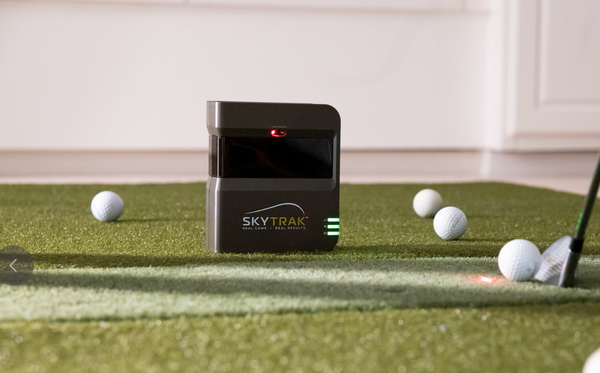
- SkyTrak: Great on an iPad or tablet, but you stay inside SkyTrak's own software. It does not support third party software like GSPro, so GSPro online play is off the table.
Your PC matters more online
GSPro asks for at least a GTX 3060 graphics card and 16GB of memory for 1080p, and an RTX 3080 or better with 32GB for 4K. If your PC already struggles in a solo round, an online round will not fix it. A standard laptop or iPad will not run GSPro at all.
Run a wire if you can
Your launch monitor may already run on Cat6 to the PC. The ProTee VX ships with a 50 ft Cat6 cable for exactly that. If your router is close, run a second cable from the router to the PC too. A wired connection takes the garage WiFi out of the equation.
Plan your voice chat
GSPro has lobby text chat and a Try Video Ninja button in the Chat tab that opens a browser video room. Plenty of groups skip both and use a phone on speaker or Discord. The projector speaker is not great, so a separate speaker in the room helps a lot here.
For tournaments, your name has to match exactly
If you join SGT, go to Settings, then Players, and set your Name and UID exactly the way SGT gives them to you. GSPro uses that UID for SGT tournaments, so a typo here is the first thing to check if a score does not show up.
What is SGT, and do I need it?
SGT stands for Simulator Golf Tour. It runs organized online tournaments on GSPro. You only need it for tournaments. Casual rounds with friends in an Online Match do not need SGT at all.
SGT runs several tours, so you play against golfers near your level. These include a WEB Tour for newer players and shorter hitters, the main SGT Tour, an AutoPutt Tour, and a Par 3 Tour. Events are scored gross and net, with season points and leaderboards. SGT Premium adds user managed leagues, and you can run your own league for your group.
Launch monitor brands sometimes bundle SGT time. This summer Uneekor ran an Invitational on GSPro and SGT, and qualifying Uneekor buyers got a year of GSPro, a year of the Pro Package, and a month of SGT Premium. Those deals come and go, so ask us what is running when you buy.
Who online play is not for
If your sim runs on an iPad or a phone app and you do not want to buy a gaming PC, GSPro online play is not for you yet. The same goes for SkyTrak owners, since SkyTrak does not work with GSPro. Use your launch monitor's own software for now.
And if you mostly use your sim to practice, you do not need any of this. Online play is for the people who want a Thursday night round with their regular foursome when half of them have moved away. For that, it is the best use of a home sim we know of.
FAQ
Do my friends need the same launch monitor as me?
No. Each player uses their own launch monitor, as long as it works with GSPro. Talk about putting settings before you start, because that is where different setups feel the most different.
Does my friend need their own GSPro subscription?
Yes. Each player in an online round needs their own GSPro license and their own Windows PC.
How many people can play in one online round?
GSPro says up to 8 players, local or online.
Do we all need the same course downloaded?
Yes, the course needs to be downloaded on each device to play.
Can I play GSPro online with my MLM2PRO or SkyTrak on an iPad?
Not on an iPad. GSPro needs a Windows gaming PC. With a PC, the MLM2PRO can connect. SkyTrak does not support GSPro at all.
How many courses come with GSPro?
GSPro comes with over 2,500 courses to choose from, and the community keeps adding more through the course server.
Want help getting your sim ready for online play? Send photos and measurements of your space to hello@gunghogolf.com or text (512) 222 2220. We can spec the PC, get your launch monitor unlocked for GSPro, and make sure everything talks to each other before your first round. Shop the ProTee VX, our favorite value launch monitor for GSPro, or the HD Gaming PC.
Planning a simulator?
Build your setup online, or book a 30 minute call with our team.